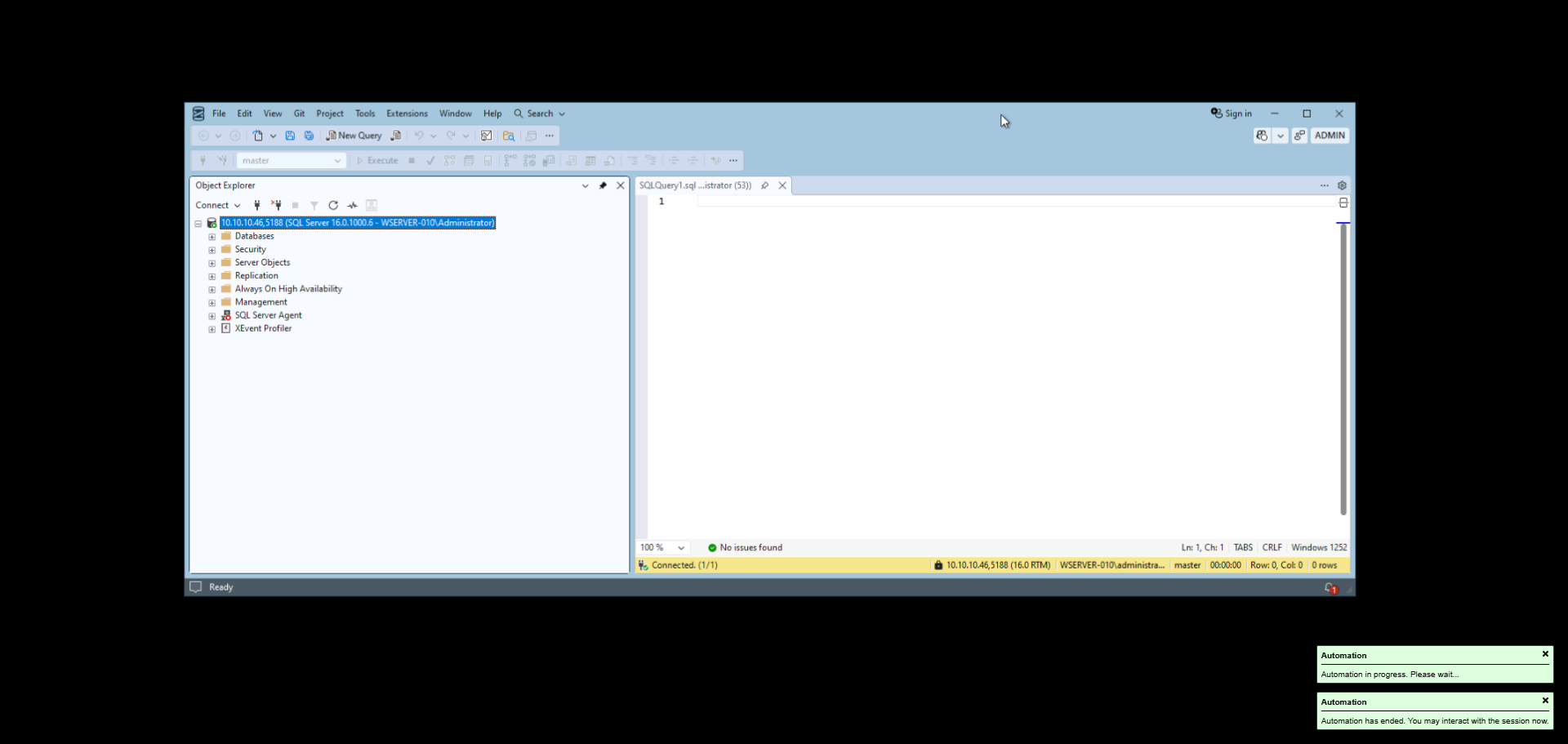
You can launch Windows programs remotely within the PAM using Remote App for Windows.
Prerequisites:
- Admin privileges on a Windows Server.
- Quick Session Collection deployed with a valid license on the specified jump server.
This enables a multitude of configurations and ensures the proper segregation of privileges from within the PAM.
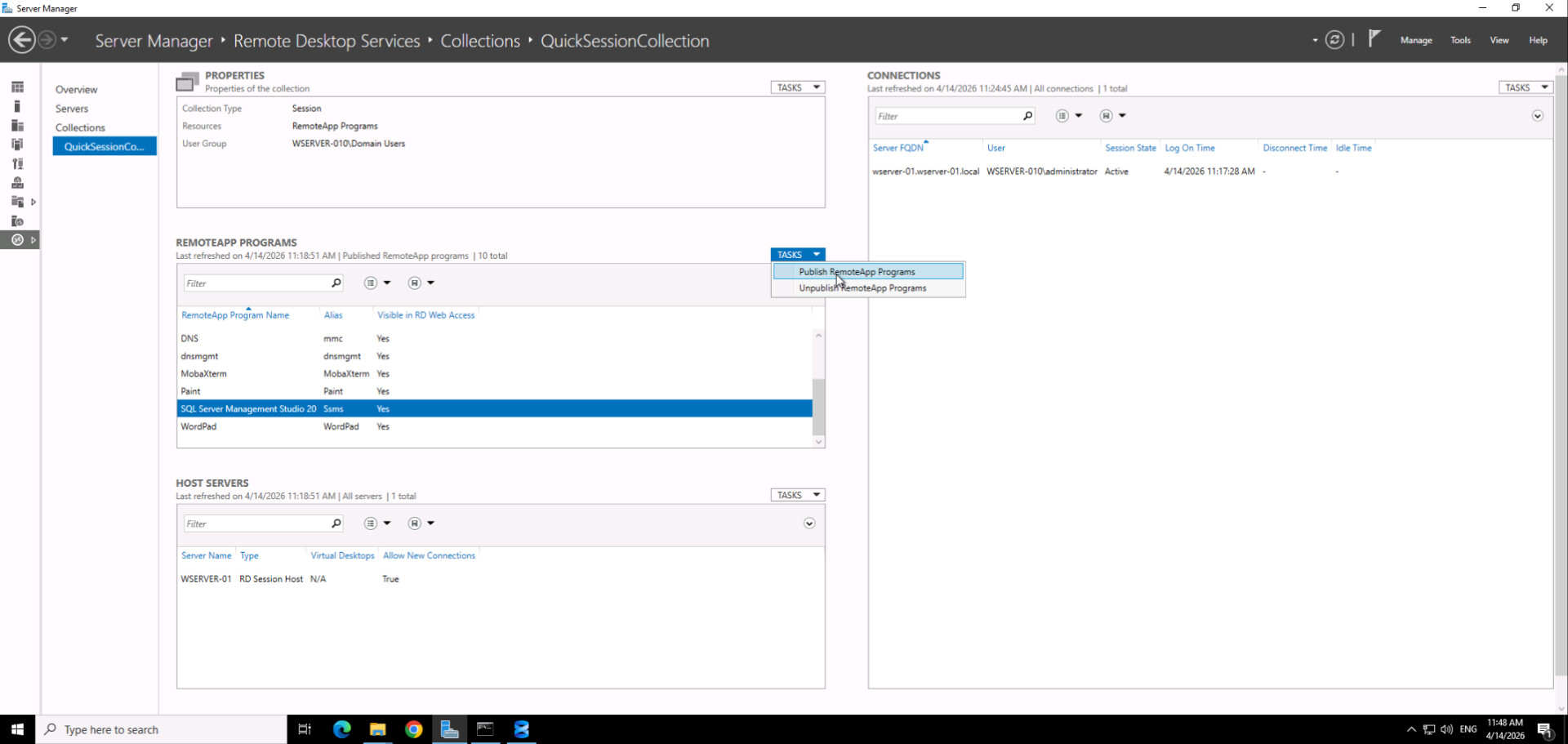
To use a remote app from within senhasegura, you must publish the program navigating to:
Quick Session Collection > Remote app programs > Publish remote app
Please note that this configuration takes place within the Windows environment and falls outside the senhasegura application and standard support scope. Please use this guide as a reference and apply it to your specific context.
Server Manager:
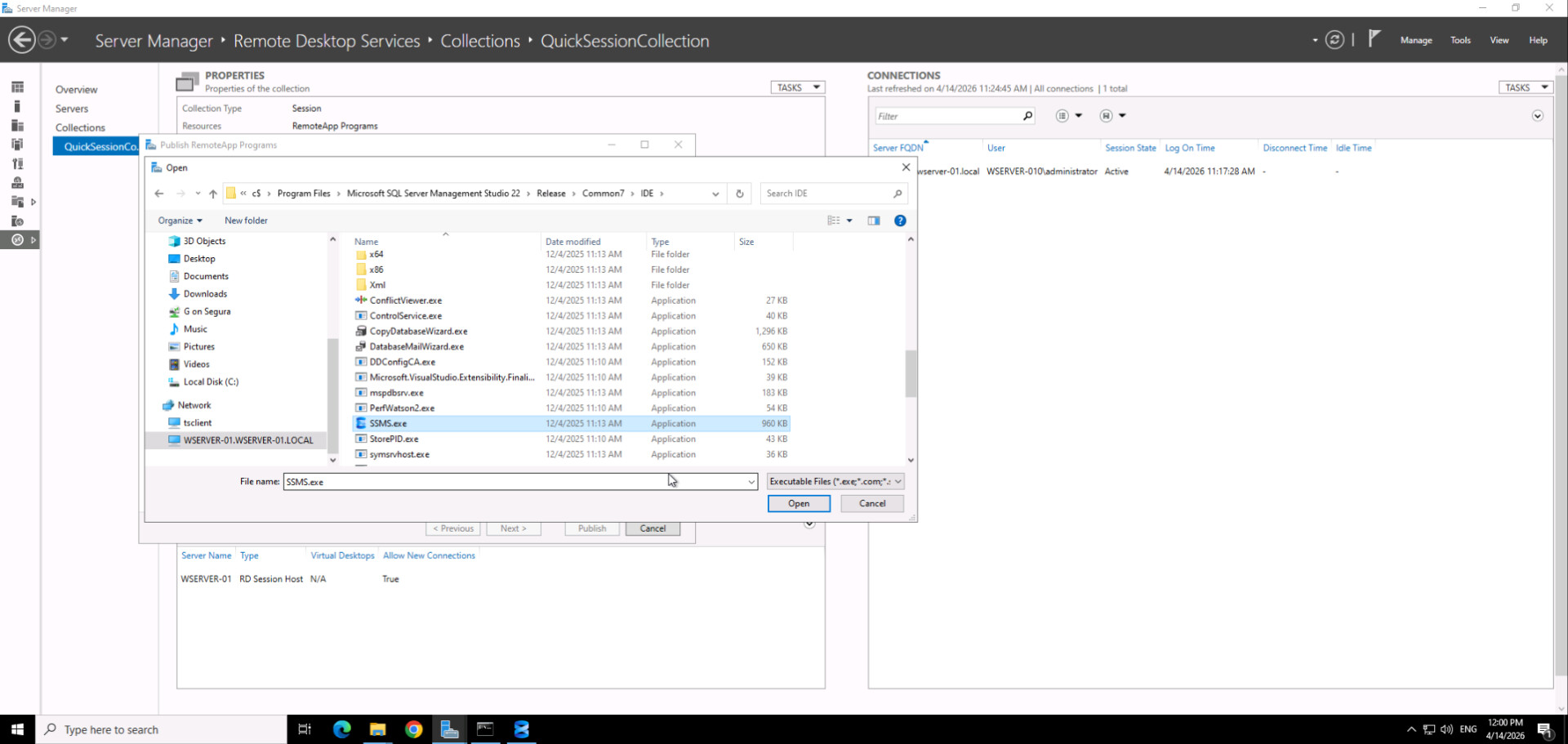
Find the executable file as shown below:
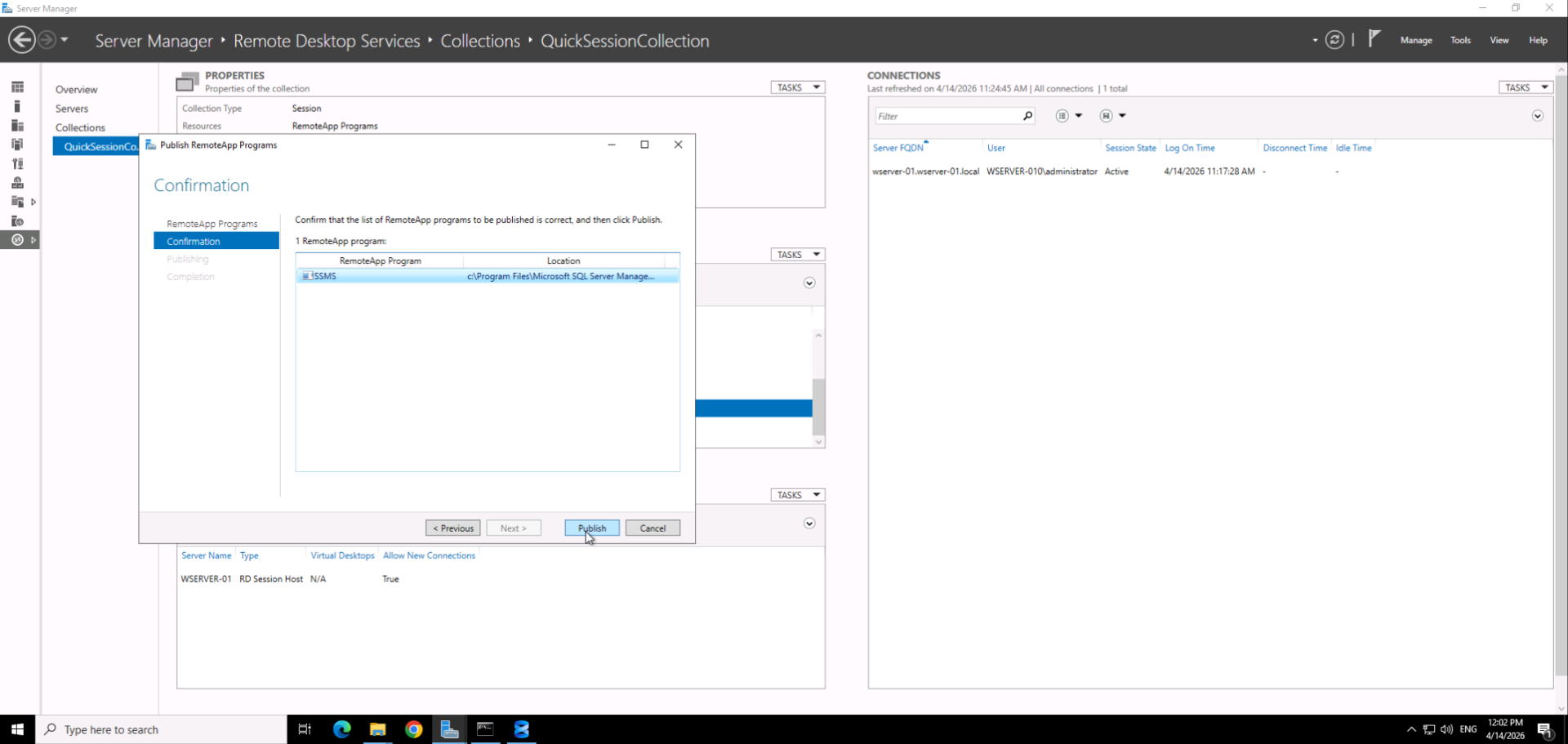
Publish the application:
After publishing, the entry should look something like this:
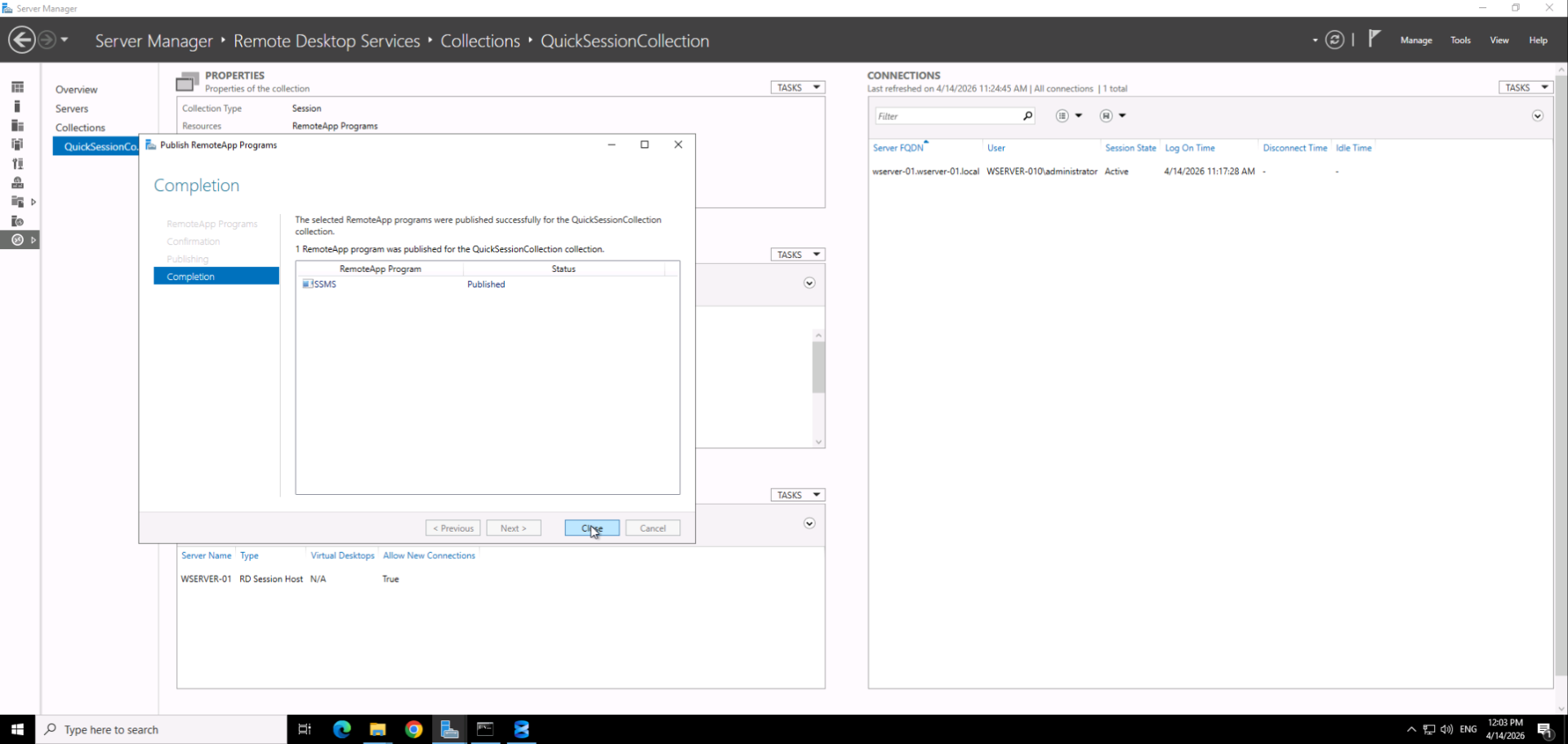
Next, you must adjust the session properties to ensure connectivity. Go into properties:
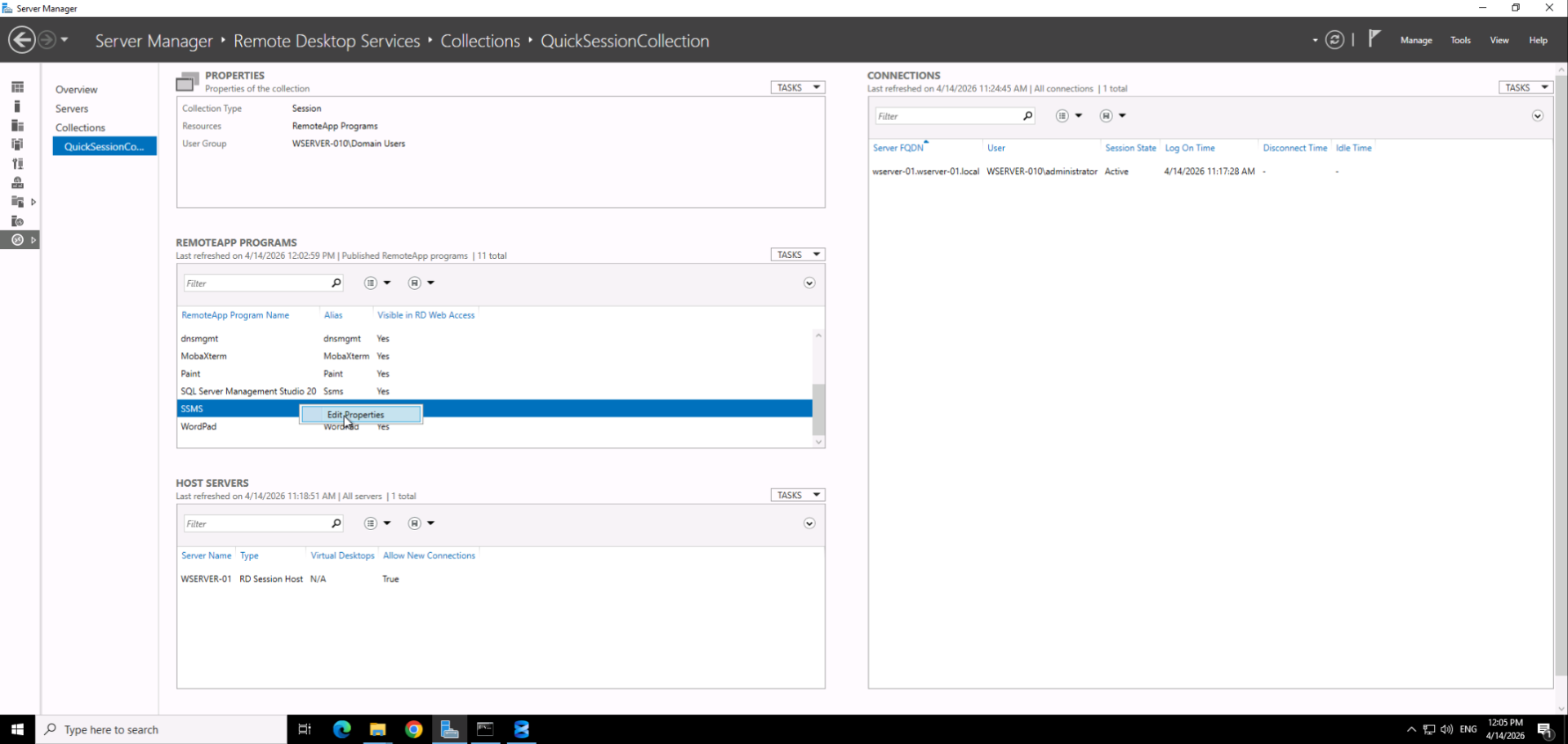
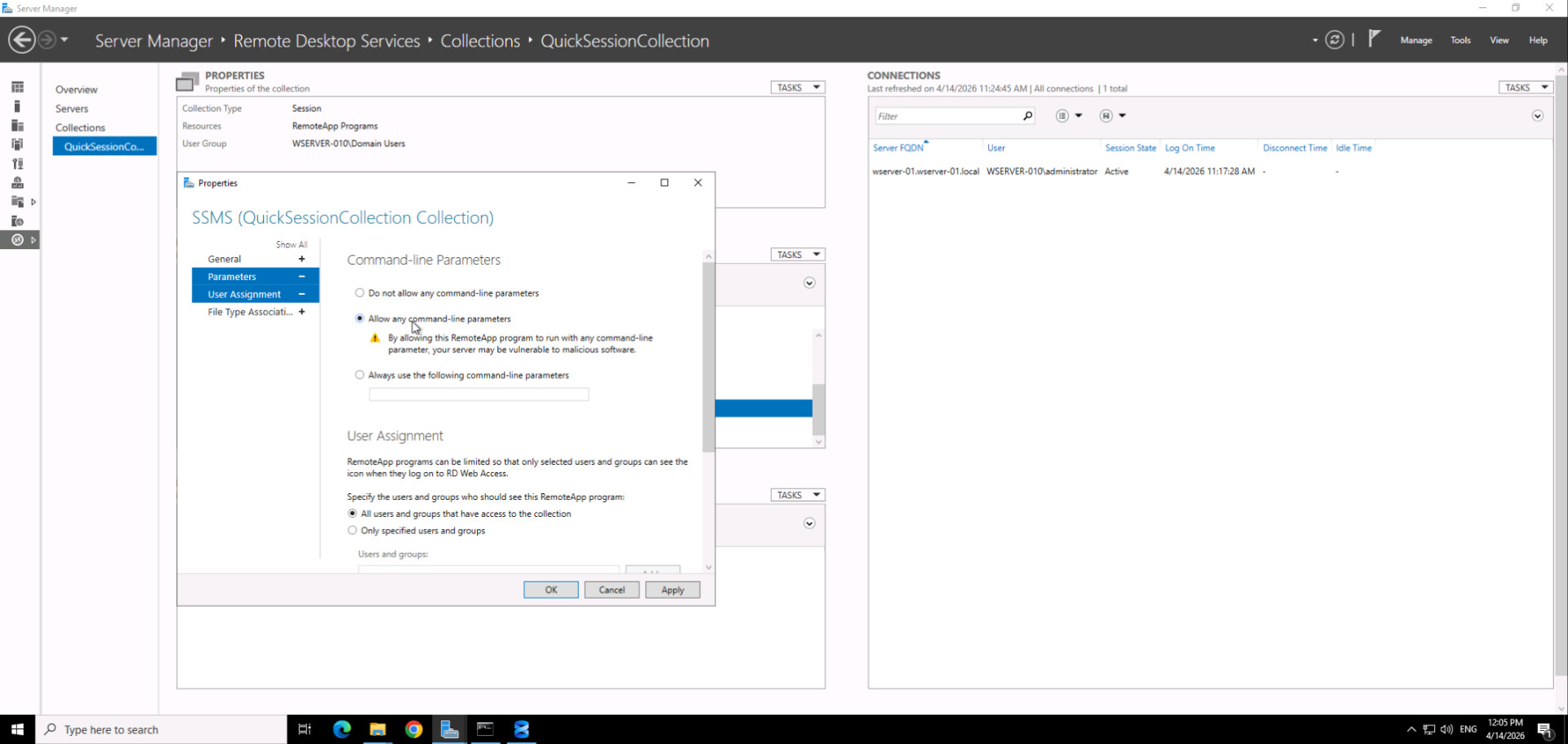
Navigate to Parameters > Command line Parameters:
Choose the “Allow any command line parameters” option and apply the configuration.
Next, copy the path of the SSMS executable on the jump server and place it into the PAM configuration, as shown below:
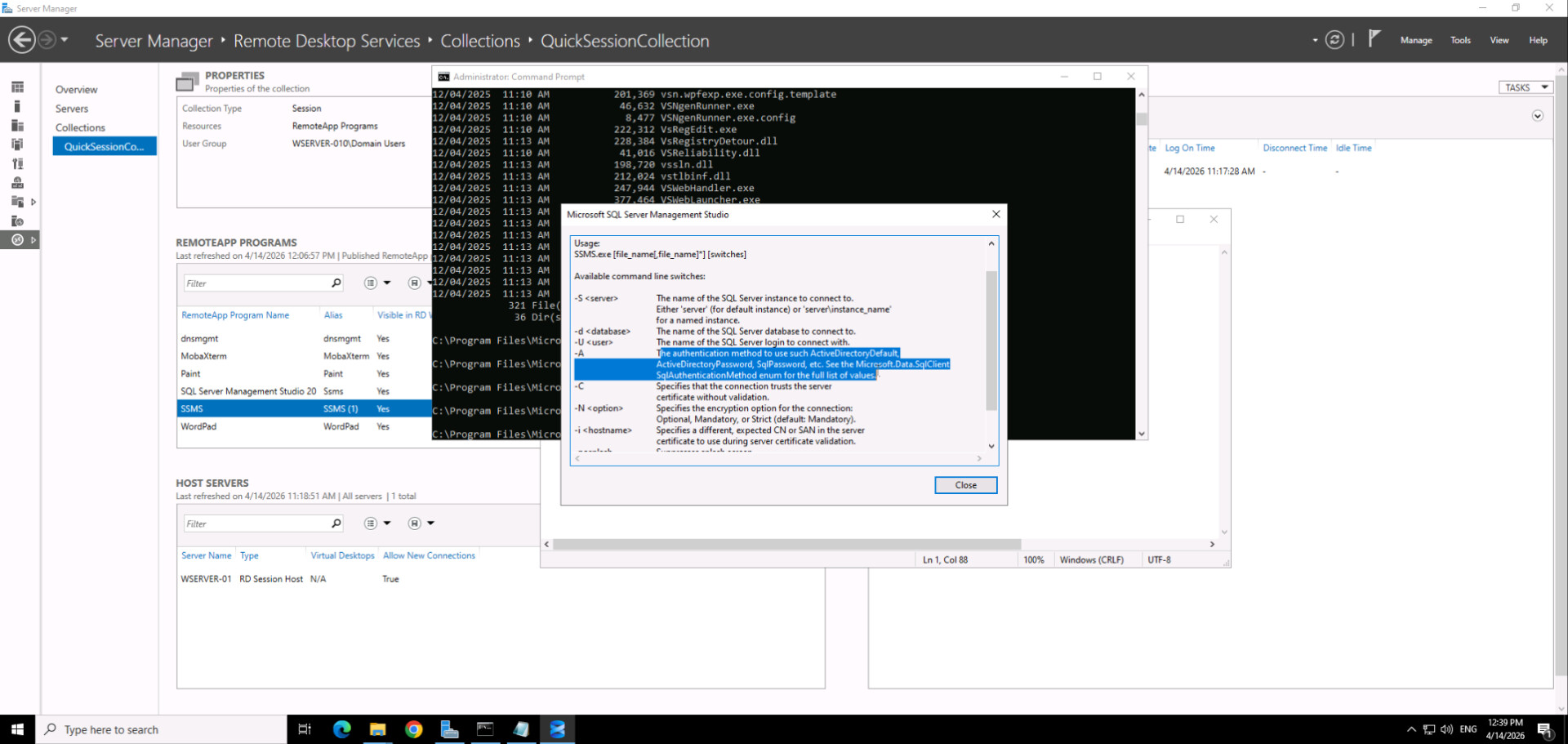
For advanced configurations and to determine the best options for your setup, please refer to the official Microsoft SSMS Utility documentation and the SSMS help center.
Note: Newer options using Windows authentication require the use of the -A parameter, which contains a list of options.
| Option | Description |
|---|---|
| -A | The authentication method to use (such as ActiveDirectoryDefault, ActiveDirectoryPassword, SqlPassword, etc.). See the Microsoft.Data.SqlClient SqlAuthenticationMethod enum for the full list of values. |
Specific Implementation: SSMS
1. Example using Windows Authentication:
Here is an example from my environment (which uses a custom port, 5188. You could also use the [port] variable here, but I have specified it directly for this example):
Executable Path:
C:\Program Files\Microsoft SQL Server Management Studio 22\Release\Common7\IDE\ssms.exe
Command Line Parameters:
-nosplash -S [host_ip],5188 -A NotSpecified -C
(Alternatively, using generic variables: -nosplash -S [other_relevant_variables] -A NotSpecified -C)
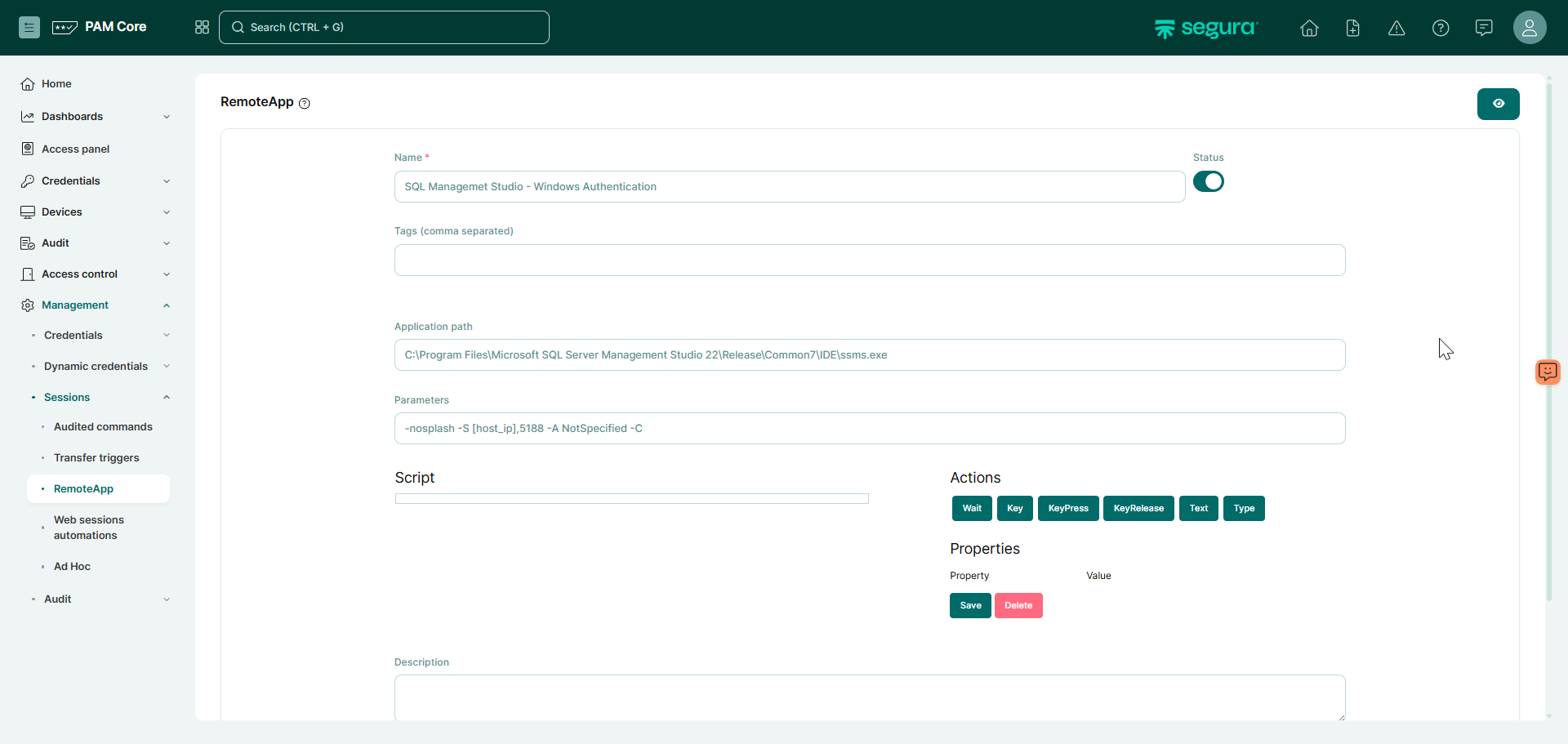
This configuration opens the SSMS session automatically with Windows Authentication.